
Pause Fabric capacity
The cost of distraction.
You work for a client on their Microsoft Fabric platform but don’t have access to all of the features and administrative tools, so you purchase your own small Fabric capacity to test features and settings in a sandbox of your own. During a busy period, you forget all about your personal Fabric capacity until you notice the dent in your bank balance. £225 per month for a service you weren’t even using!
The cheapest Microsoft Fabric capacity, F2, is ideal for individual freelance developers who need access to the complete Fabric platform but don’t have a regular task to perform with it. Pause it and it costs nothing, however, forget to pause it and you’re literally paying for nothing.
Why I wrote this post
Like many cloud and fabric engineers, I work with clients that manage their own infrastructure through a dedicated infrastructure department. They provide a powerful Fabric capacity and an Office 365 licences, and in return, I help them to understand and create the processes that drive their organisation’s data governance, insights and profit enhancing processes through collaboration. I don’t need my own Fabric capacity or 365 licence when working on their systems, but their supplied accounts are restricted by company policy and I will be a user, not an administrator. Regardless of how impressive their infrastructure department is, they will not have a deep understanding of Fabric or the Azure components and therefore I often need a sandbox to play in, where I can change settings, add components and features and investigate issues outside of their environment, so I need my own private Fabric capacity.
My personal Fabric Capacity improves my knowledge, which I then share with my customer.
Sadly, Microsoft don’t offer a free or even discounted Fabric package for consultants, so purchase the smallest capacity available and pause it when it isn’t needed. During intense client-project work, it’s easy to forget to pause my own unused capacity, and even an F2’s 31 pence per hour rate can present a shock when the bill comes in.
The more mature platform Databricks has a built in timeout for its compute engine, which defaults to 2 hours idle time before shutting down in development mode and just the actual runtime when scheduled, but Microsoft Fabric doesn’t offer any built-in method to pause its capacity. You are simply charges for every minute you leave it running.
Solution: Use the API
A Fabric capacity is an Azure resource which can be paused manually in the Azure portal and also programmatically via the Azure Management API. To use the Azure Management API, you need to write some code and then schedule it to run using an orchestrator of your choice.
- Azure Automation Account Runbook
- Azure Function
- Logic App
- Scheduled notebook or data pipeline within Fabric itself.
- PowerShell with a task scheduler
- Power Automate
You could just set an alarm on your phone to remind you to switch it off (not recommended).
I went with a scheduled runbook in the Azure Automation Account for these reasons:
- Reliable
- Native ARM integration
- RBAC-based managed identity authentication
- Great job logs
- Alerting to notify me by email or SMS if something fails
- Free
An Azure Automation Account is free for the first 500 Runbook minutes per month. Calling the Azure Management API to pause Fabric takes about 30 seconds on average, so I could run the job every 44 minutes per month for free (if I was a little mad. I’m not).
A more sensible schedule might be every few hours, or set times each day.
The runbook is going to perform the following steps, in order:
- Authorise itself with Azure using Managed Identity
- Get an Access token for Azure Management API
- POST to the suspend endpoint in the Azure Management API
Important note: Do not believe AI if it tells you to use the pause endpoint in the Fabric API. There is no such thing! This is a typical AI hallucination whereby it makes up fictitious endpoints and convincingly provides code on how to call them. There are API endpoints in fabric API to get information about the capacity but there is no pause or resume endpoint right now.
Microsoft document the correct endpoints under the Fabric API documentation, but note that these are in the management.azure.com API, not the fabric API.
Creating the Runbook
Goto Automation Account -> Runbooks -> +Create
Choose a sensible name and select PowerShell and the latest PowerShell runbook type, then click through the steps, adding some tags if that’s your thing, and finally click “Create”.
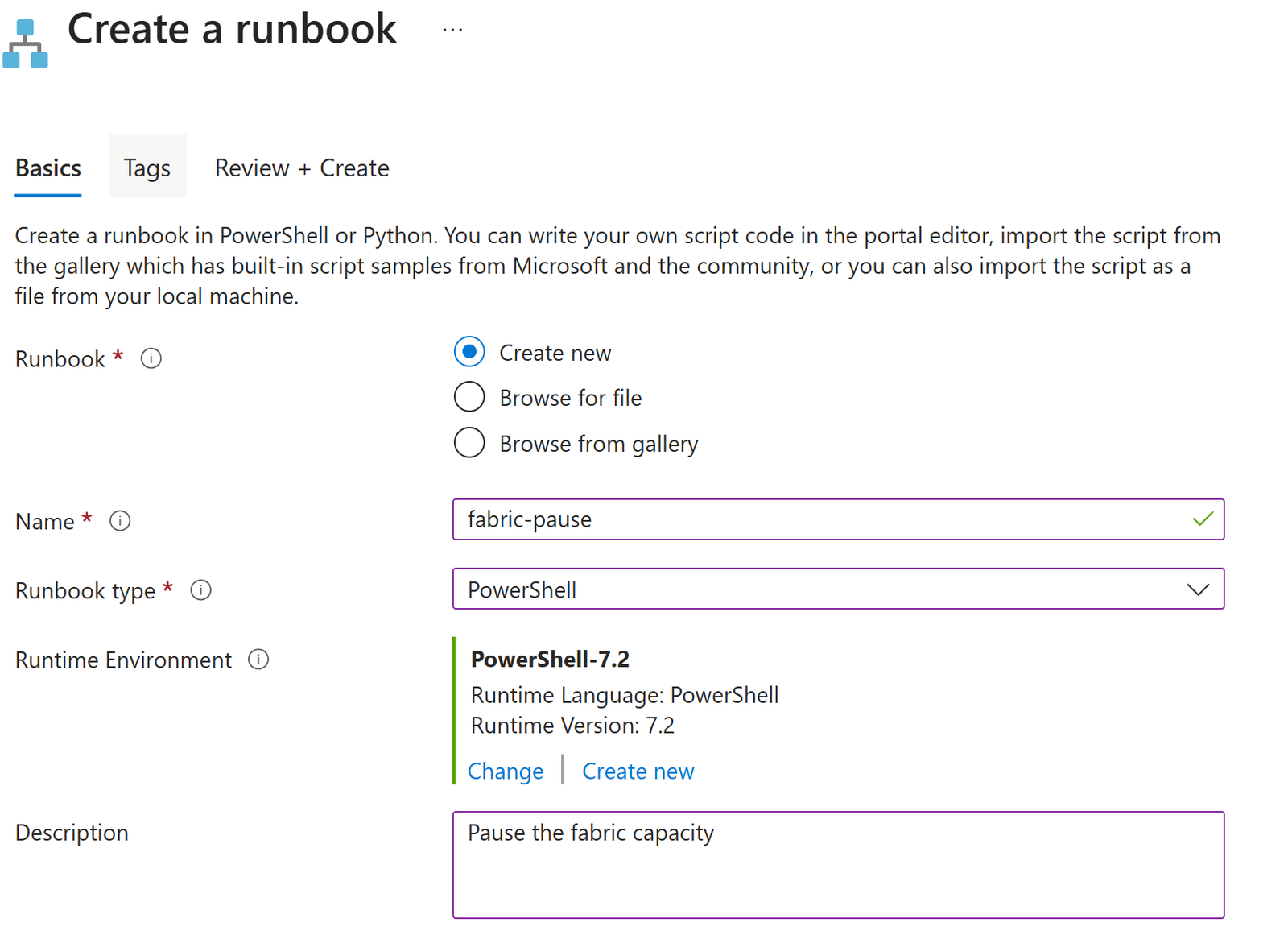
You’ll end up in a blank script window, ready to add some PowerShell. Add the following script to the runbook.
Runbook Script
Generally it is best to pass sensitive information into a script using parameters but you could argue that SubscriptionId, ResourceGroup, and FabricCapacityName are not particularly sensitve, but I didn’t want to include mine in this post so I have used parameters for the script. You could just hard code them if you prefer.
param(
    [Parameter(Mandatory = $True)][string] $AzureSubscriptionId,
    [Parameter(Mandatory = $True)][string] $ResourceGroupName,
    [Parameter(Mandatory = $True)][string] $FabricCapacityName
)

# We’re going to use the Azure Management API (not the Fabric API!)
$api = "https://management.azure.com"
$apiVersion = "?api-version=2023-11-01"

# Build the API endpoint uri
$uri = "$api/subscriptions/$AzureSubscriptionId/resourceGroups/$ResourceGroupName/providers/Microsoft.Fabric/capacities/$FabricCapacityName/suspend$apiVersion"

# Connect to azure to use the Managed Identity
Connect-AzAccount -Identity

# Get an access token object and extract the Access token
$tokenObject = Get-AzAccessToken -ResourceUrl $api

$token = $tokenObject.Token
# Build a header object containing the access token and optionally specify the Content-Type

$headers = @{
    "Authorization" = "Bearer $token"
    "Content-Type"  = "application/json"
}

try {
    Invoke-RestMethod -Method POST -Uri $uri -Headers $headers -ErrorAction Stop
    Write-Output "Pause request succeeded."
}

catch {
    # Try to extract the JSON error message from the response
    $errorJson = $null
    if ($_.ErrorDetails.Message) {
        try {
            $errorJson = $_.ErrorDetails.Message | ConvertFrom-Json
        } catch {
            # Not JSON, ignore, variable will remain $null
        }
    }

    # Look for expressions that indicate it was already paused, therefore not an error which might leave it running
    $isAlreadyPaused =
        $errorJson.error.code -eq "Conflict" -or
        $errorJson.error.message -match "already paused" -or
        $errorJson.error.message -match "not in Active state" -or
        $errorJson.error.message -match "Service is not ready to be updated"
    if ($isAlreadyPaused) {
        Write-Output "Pause skipped (capacity already paused or not in Active state)."
    }
    else {
        Write-Error "Pause failed with unexpected error:"
        Write-Error $_
        throw $_
    }
}
Authentication and Authorisation
We want to call the Azure Management API’s suspend endpoint to pause the Fabric capacity.
To access the API we pass an access token in the request headers, which provides both authentication and authorisation.
The access token contains information that the API uses to determine our permissions and which endpoints we’re allowed to call. The main components of the token are the issuer, subject, audience, and scope.
We do not create tokens or define what goes in them, that is the issuers job. What we do control is the RBAC role and membership the issuer uses when generating the token.
The PowerShell script in our Runbook connects to our Azure account using managed identity to get an access token using Get-AzAccessToken, but before we call it, we must configure our permissions so that the access token contains the correct scope. Without a valid scope, the token is effectively useless.
Permissions are often hierarchical, with higher level permissions encompassing lower levels. Suspending a Fabric capacity requires the Microsoft.Fabric/capacities/suspend/action scope or a wider scope which includes this. Whilst the Contributor and Administrator roles include this scope, they also include many other administrative endpoints, potentially opening a door to abuse. Best practice suggests following the principle of least privilege, so a custom role that contains only the scope we need is a far better choice.
To ensure this scope is included in the generated access token, we must add the Automation Account’s Managed Identity to a role in the Azure portal that has the required scope. Action: Create a new role with this scope and add the Managed Identity as a member of the role.
Creating a Custom Role
Go to the Fabric Capacity resource in the Azure portal and navigate to Access Control (IAM). (BTW: IAM = Identity Access Management). Click on Add Custom Role…
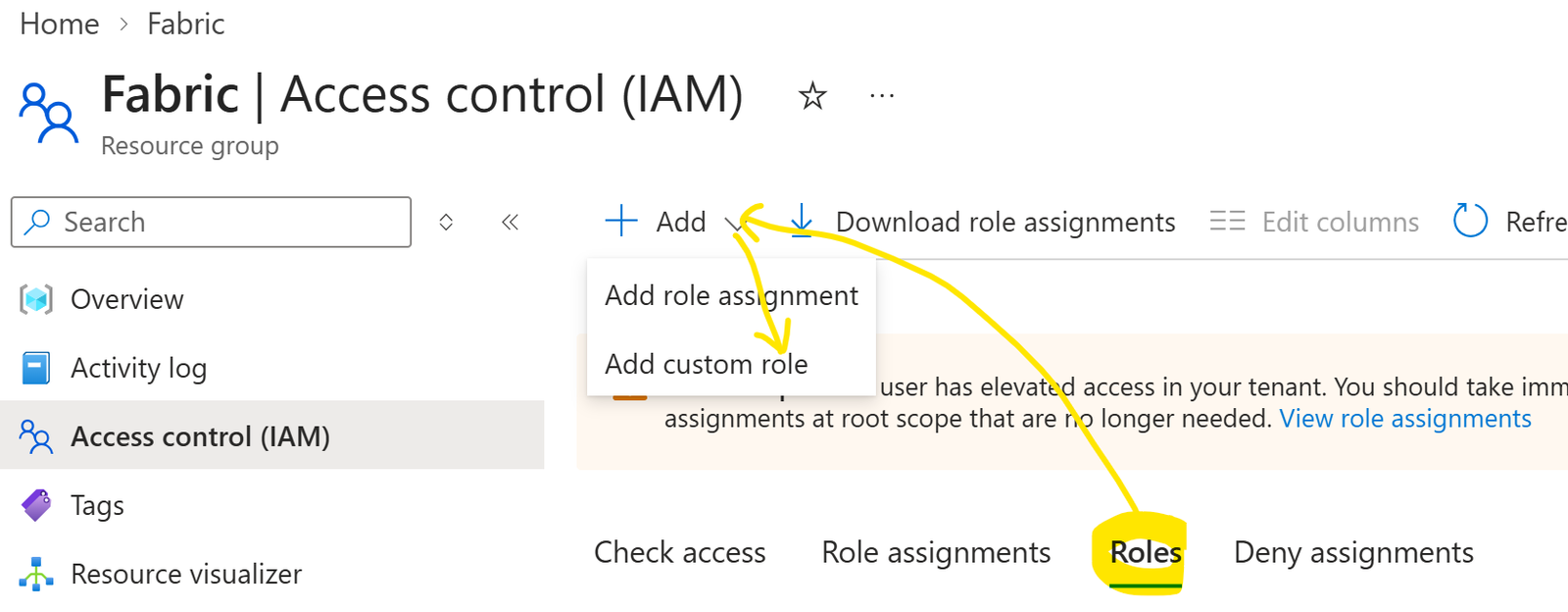
Provide a role name and select Baseline permissions (from scratch), then click Next…
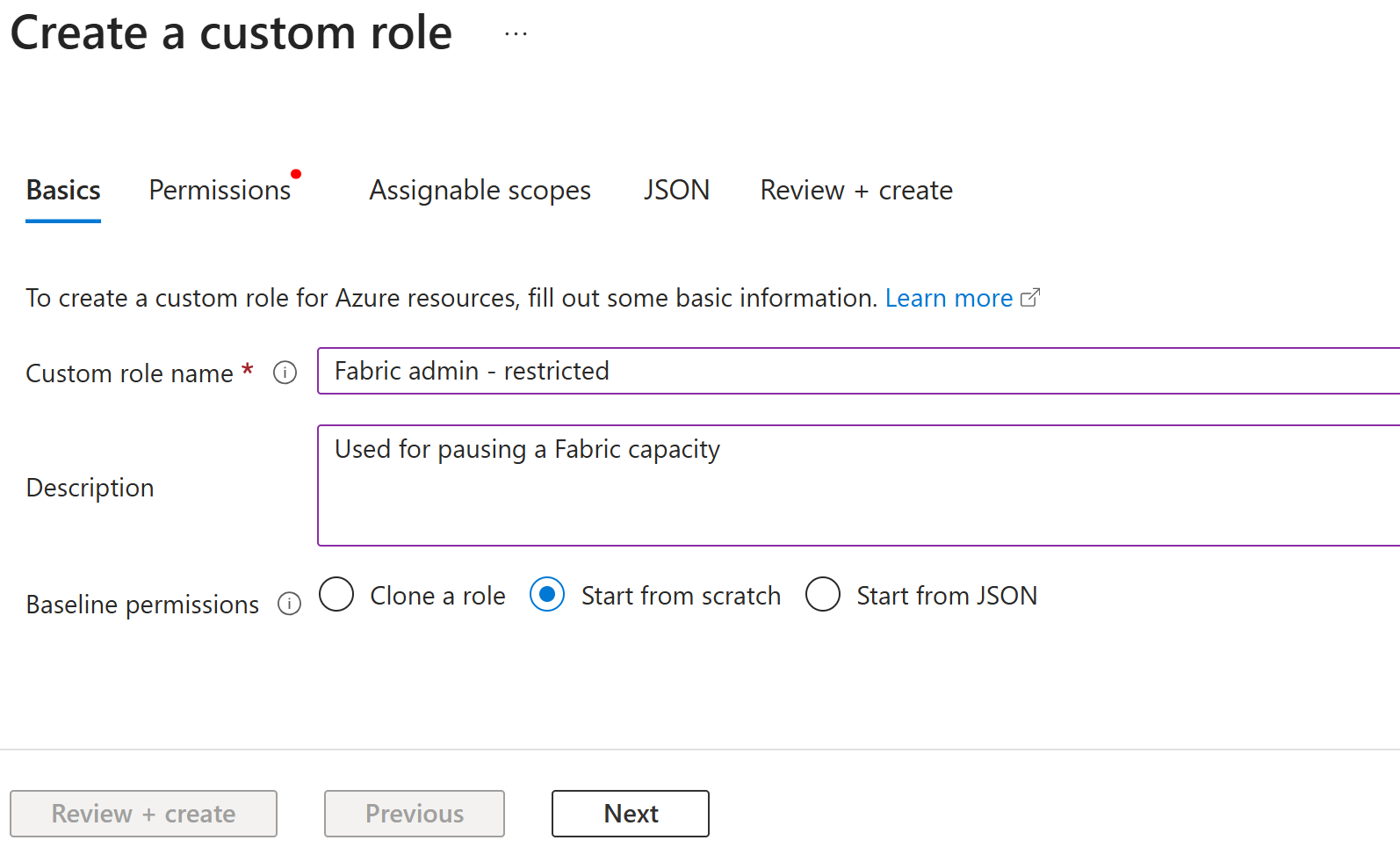
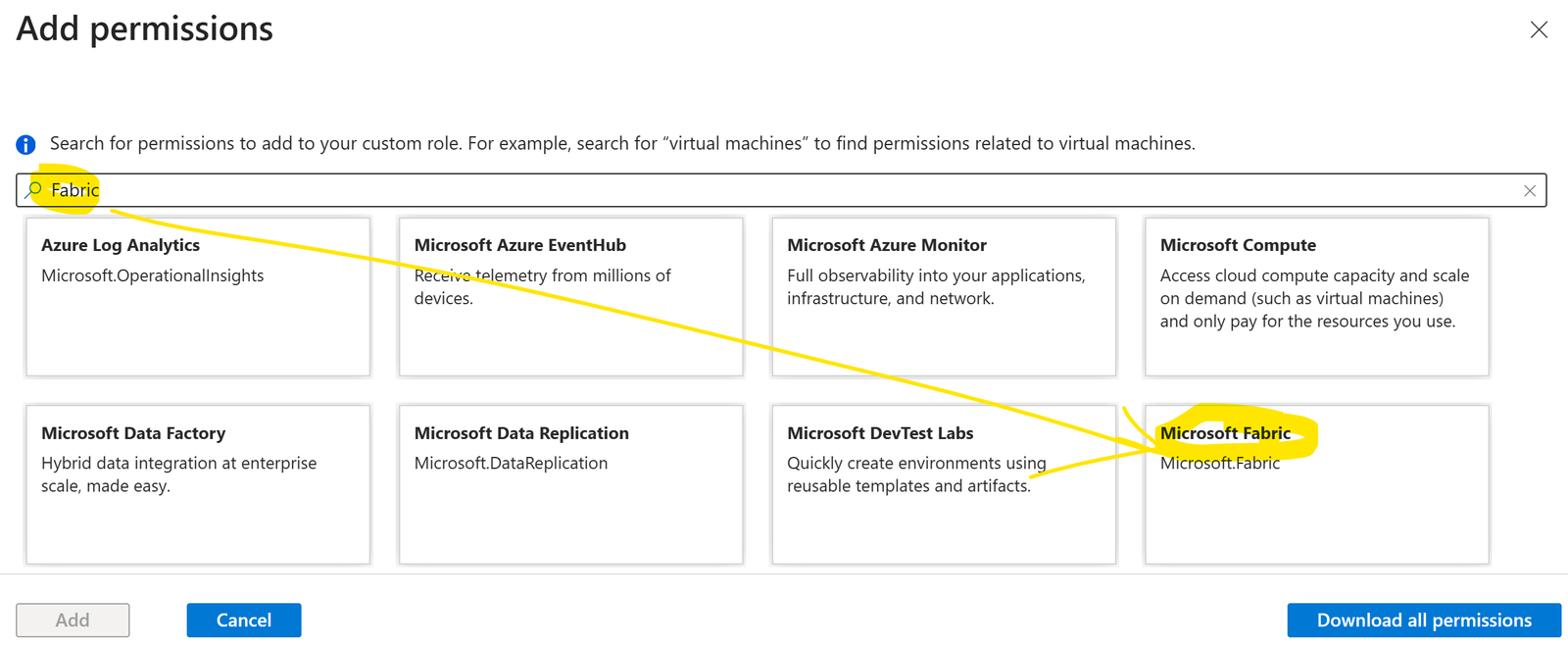
We are going to add permission for Microsoft Fabric, selecting the specific scope. Click Add Permissions…
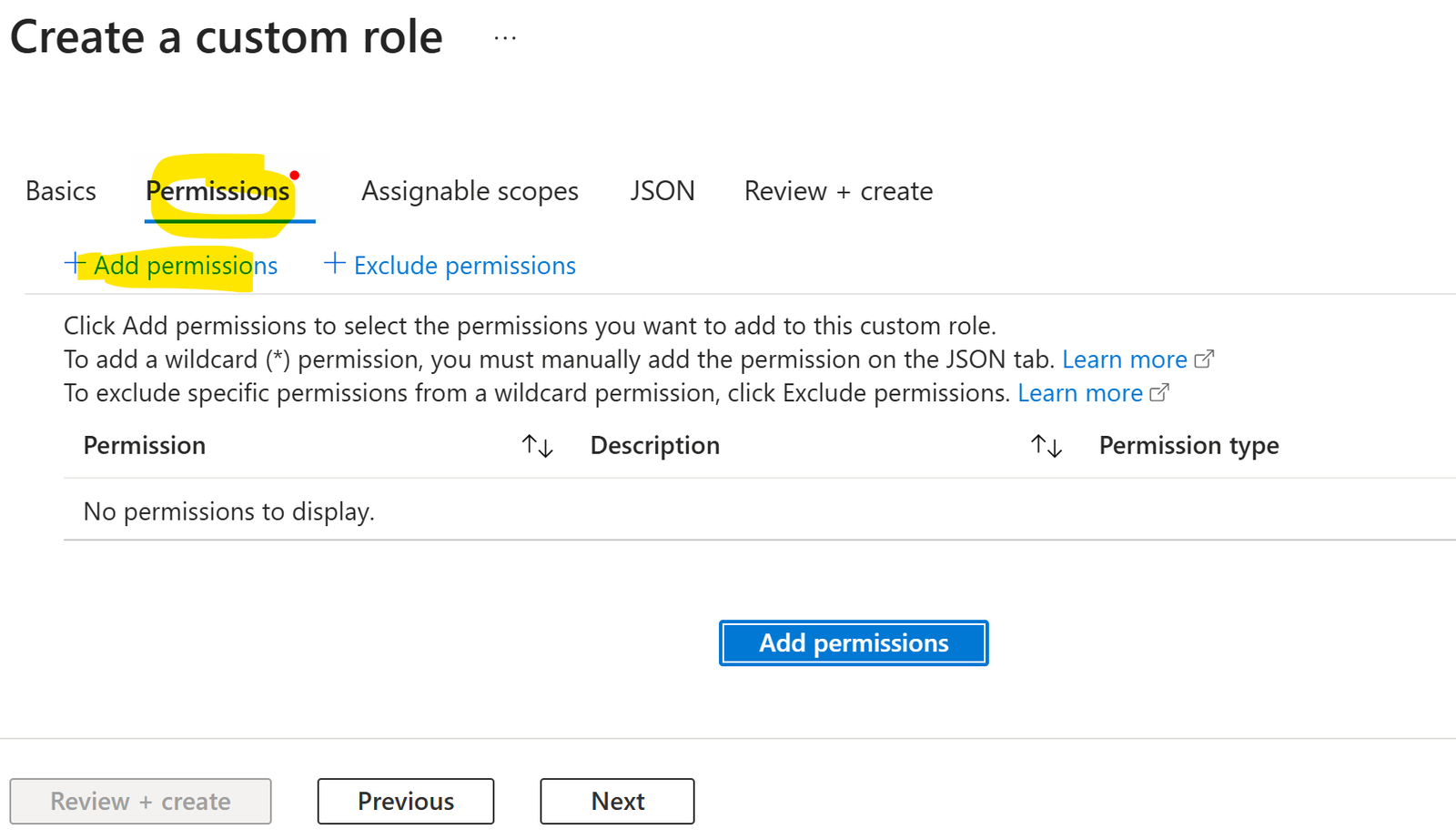
Choose Microsoft Fabric, to see its components…
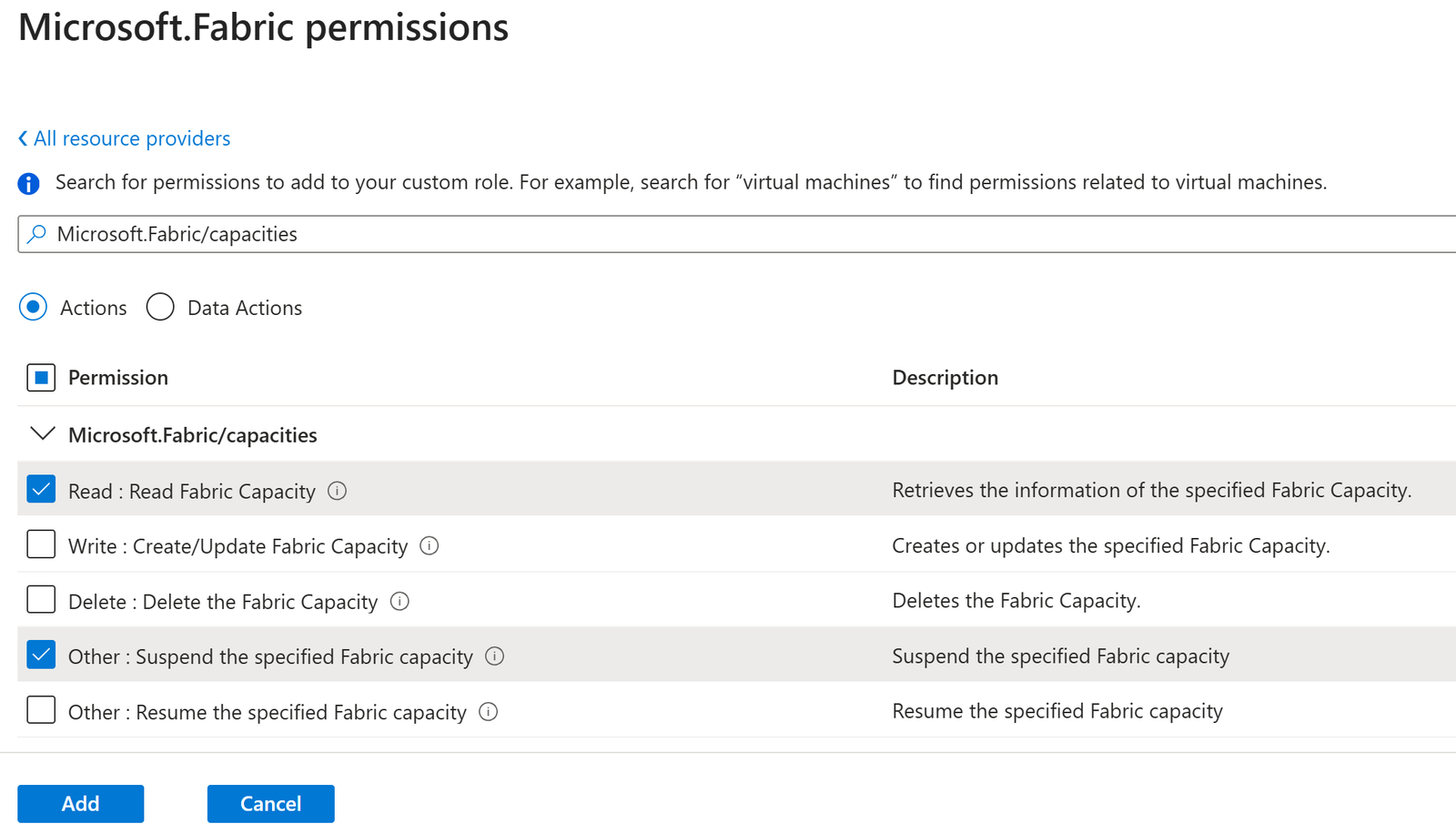
Add Suspend (and optionally Read), then click Add…
We can see our role with its scopes. Click Review and Create to create the role.
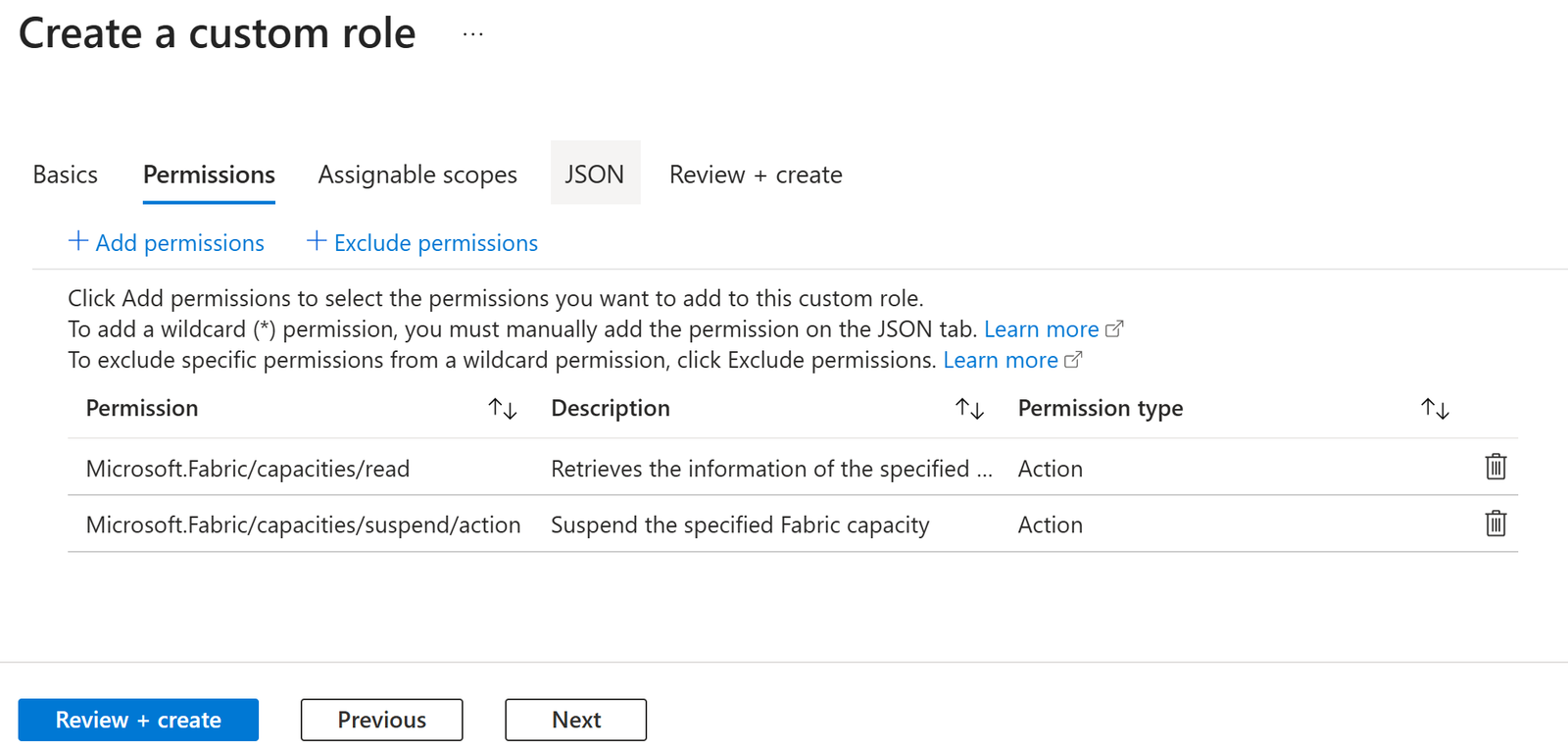
We now have a role that can be used to inject scopes into a token, but the role has no members so currently nothing will use it.
We will add members next…
Assign the Automation Account’s Managed Identity to a Role
In the Fabric Capacity’s Access Control (IAM) pane, choose Add Role Assignment.
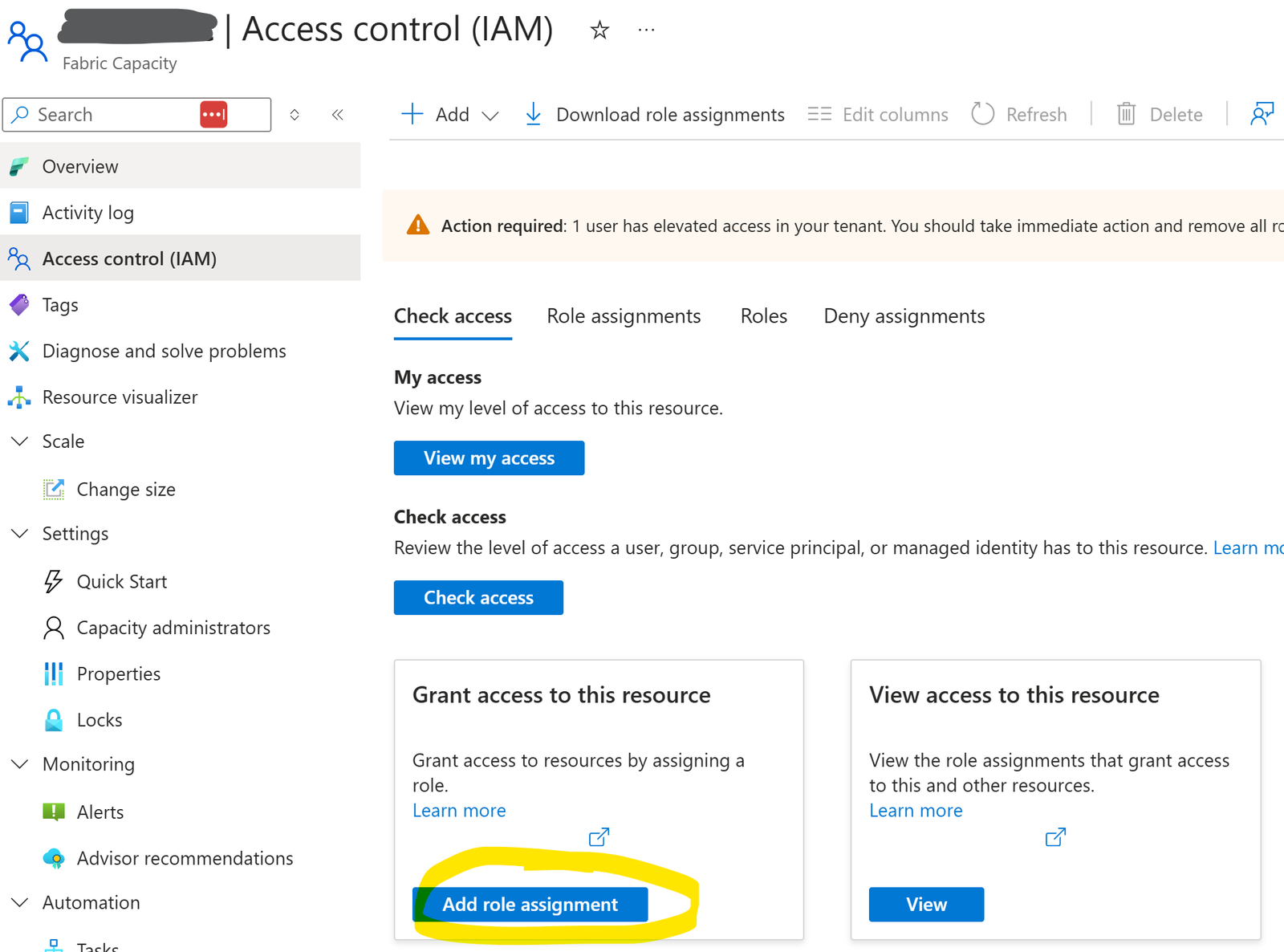
Choose the custom role assignment that we just created (for least privilege)…
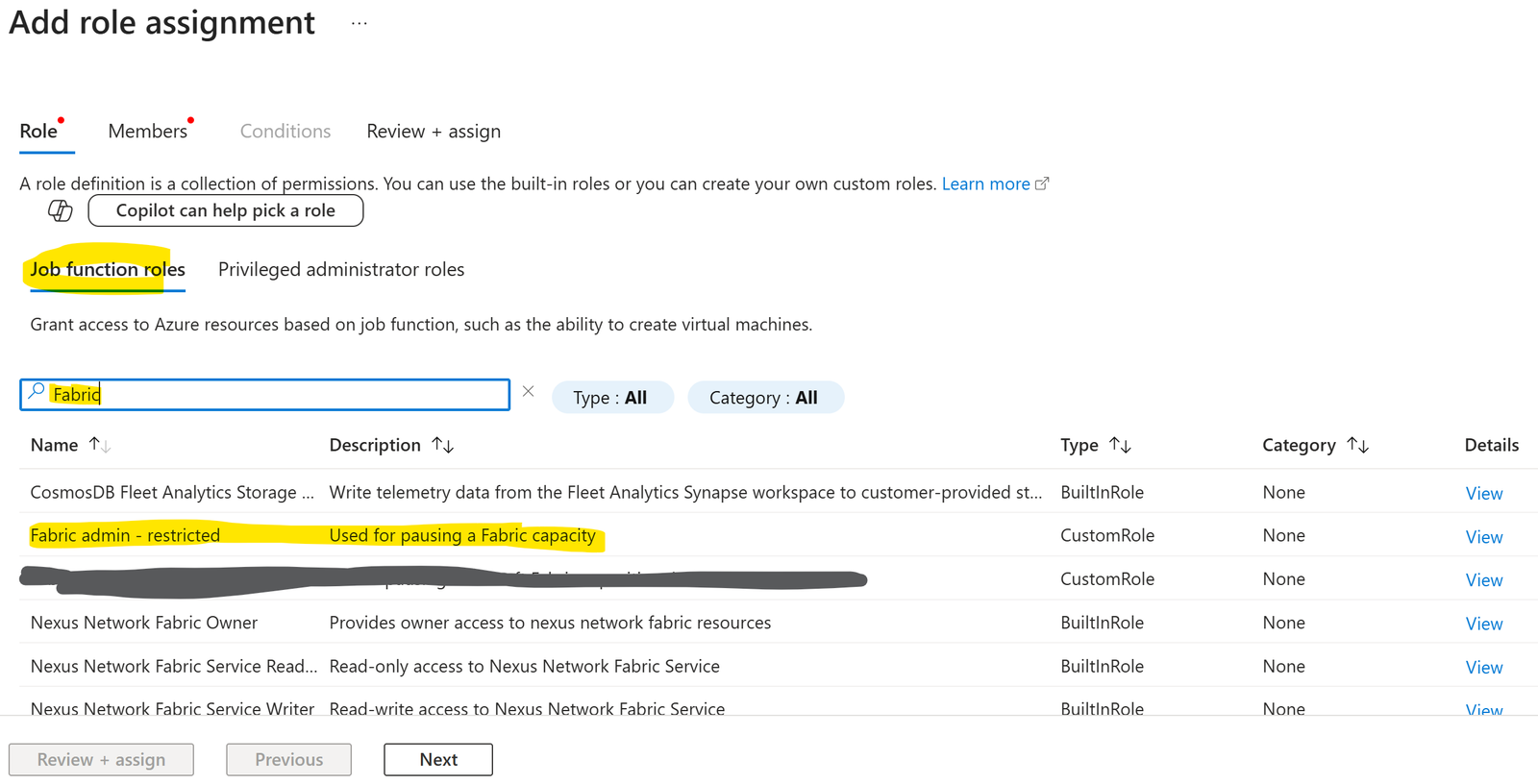
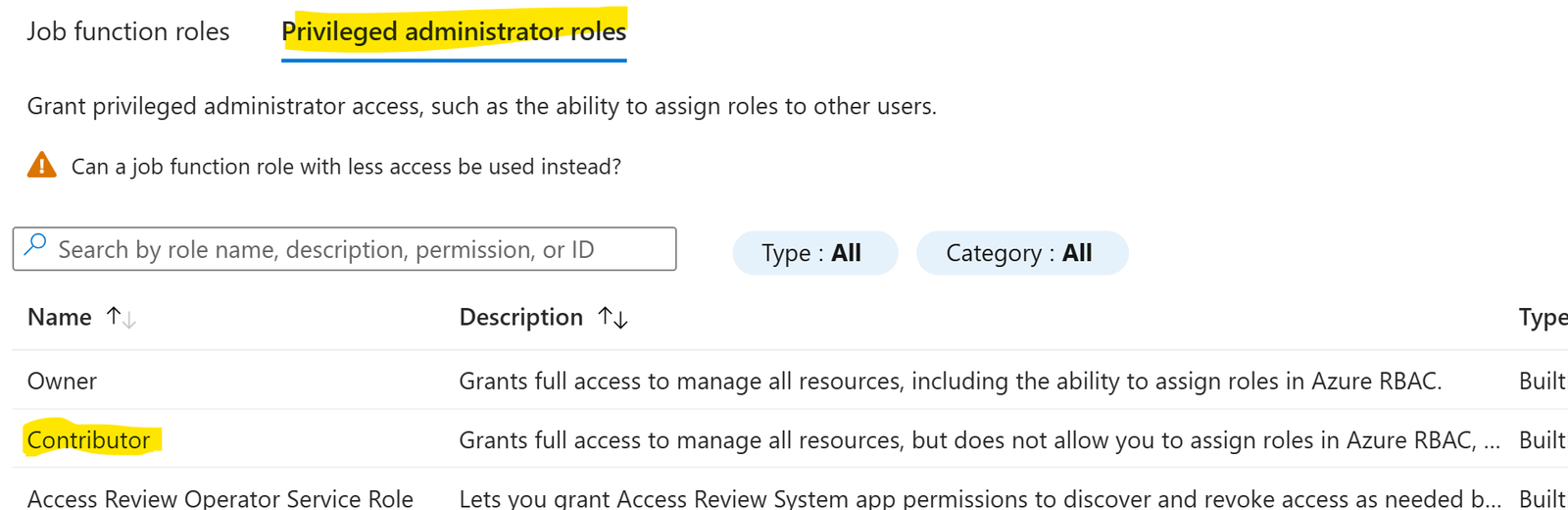
If we didn’t make the custom role and want to use the easy/lazy/dangerous option of Contributor or Administrative roles, click on Privileged administrator roles (to the right of Job function roles) and select the appropriate role (not recommended).
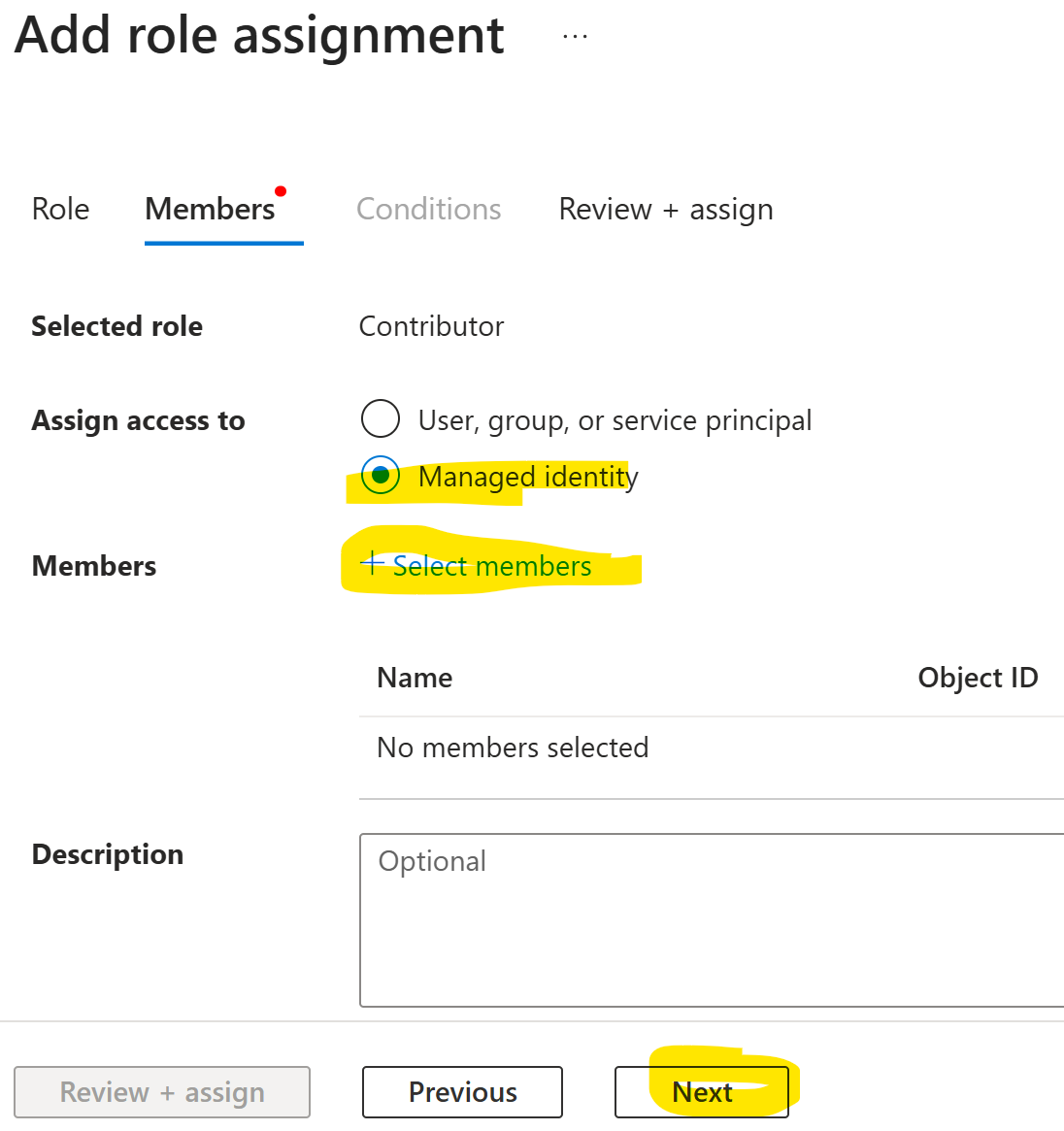
Click the Next button to get to the Add Role Assignment pane, and add the Managed Identity of the Automation Account…
Test the runbook
Now, when our script asks for an Azure Management API access token, Entra ID generates a token with itself as the issuer, the managed identity as the subject (sub/azp), and the Azure management API as the audience.
In the claims section, it includes the scopes associated with the managed identity through any Fabric roles it is a member of, exposed in the scp (scope) claim.
When we call an endpoint in the Azure Management API, the token is validated to confirm that the caller has permission to use that endpoint. If the required scope is present, the call succeeds.
Note: The token contains other important elements, all Base64encoded and protected by a cryptographic signature, which are outside the scope of this topic.
Schedule the runbook
An Azure Automation Account gives you 500 minutes of free runbook time each month, with no limit on how many times a runbook can be triggered. This script takes roughly 30 seconds to run, so you could make around 1,000 calls per month without paying anything.
Calling the suspend endpoint every hour, every day, would generate 744 calls per month. That’s far more than you need, and reducing the schedule to just a few calls per day is perfectly adequate.
How you schedule your runbook is entirely up to you, but once you’ve created one automation runbook, you might want to keep some of that free time available for others.
Notifications by Email or SMS
Azure Automation can trigger an email or SMS. I have added this in my configuration, though I am not going to discuss it here. Suffice to say that it is possible, fairly simple to setup and virtually free for the amount of usage you will give it. An SMS will cost about 3p to give you an instant notification if your pause process fails. Thats a lot cheaper than leaving the service running so well worth it.
Final Thoughts
An F2 Fabric Capacity costs £225 a month in the UK, which isn’t huge if you’re making good use of it, but it’s a painful waste if it’s only running because you forgot to turn it off. This method gives you peace of mind that if you do forget, you’re covered.
You could use a runbook to call the resume endpoint, but as a freelancer, I am not sure why you’d want to.
Enable manually
Pause automatically.
That’s the safe financial option.
Pausing is clearly useful for freelancers and those on a tighter budget, particularly when they are not using the service for production, but the same process mentioned here can also be useful in larger production environments where the cost per hour is much higher.
Fabric starts at 31 pence per hour on an F2 SKU, and doubles for every successive SKU. Many enterprise clients run with F64 to take advantage of Power BI inclusive licencing and other enterprice-level incentives and this comes in at £7,200 per month (can be reduced to £5000 with 1 year dedicated comitment). As capacities increase, it is often a good idea to purchase separate capacities for development and production to separate concerns and in these cases both suspend and resume may be releavant.
(Prices quoted are correct as of October 2026 – https://azure.microsoft.com/en-us/pricing/details/microsoft-fabric/)
Additional thoughts
You might have noticed that the script doesn’t just simply call the endpoint. I added a try catch block and some text checking on the result code.
At the time of writing, the response for an already paused capacity is “Service is not ready to be updated”. Microsoft regularly change things so this was written defensively, with some older status text included.
$isAlreadyPaused =
        $errorJson.error.code -eq "Conflict" -or
        $errorJson.error.message -match "already paused" -or
        $errorJson.error.message -match "not in Active state" -or
        $errorJson.error.message -match "Service is not ready to be updated"
If any of these conditions exist, we assume it is paused, but for all other scenarios, the code re throws the exception. This will make the PowerShell script red and mark the job failed in the logs.